Login Page and Dashboard Overview (For New Users)
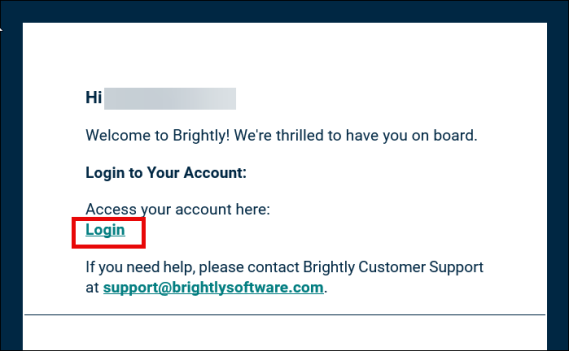
Once the admin adds the user, Login link is sent to them on the registered email ids.
-
Click the Login link on the registered email to open the Sign-in page.
-
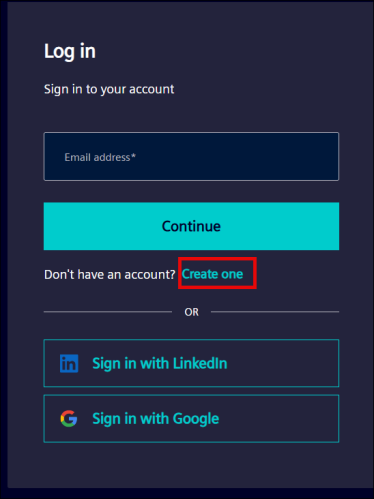
If you are signing in for the first time, click Create One.
-
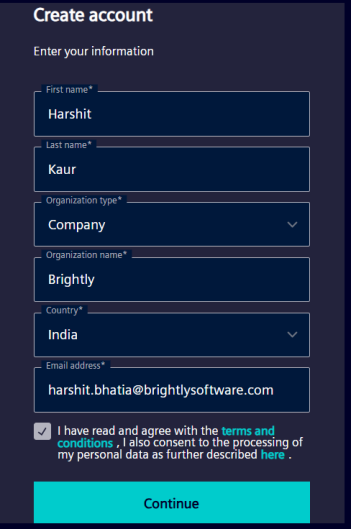
On Create account page, enter your information, accept the Terms and Conditions, and click Continue.
-
On Set your password screen, enter a password and click Create account. You can make changes to email id using Edit button and use to the eye icon to see the password visibility as you type.
NOTE The password must follow the mentioned criteria.
_299x481.png)
-
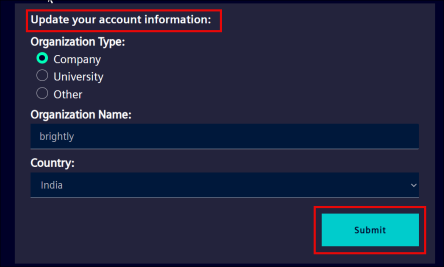
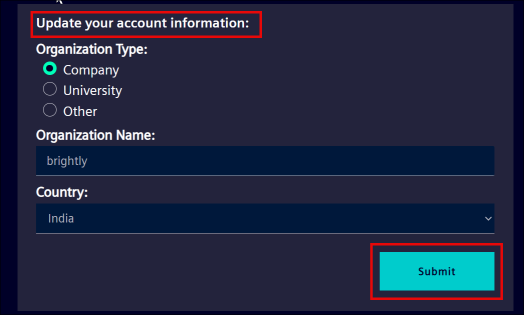
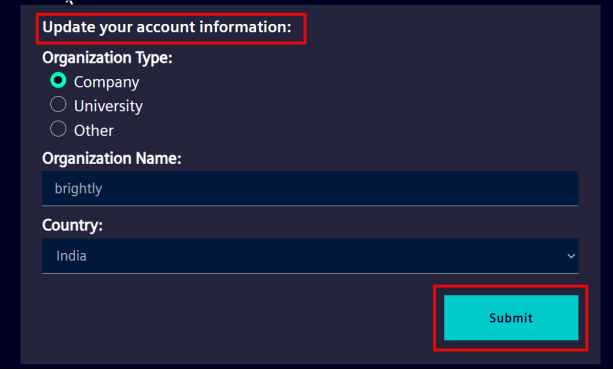
Under Update your account information:
-
Select your Organization Type.
-
Enter the Organization Name.
-
Select a Country from the drop-down list.
-
-
Click Submit.
-
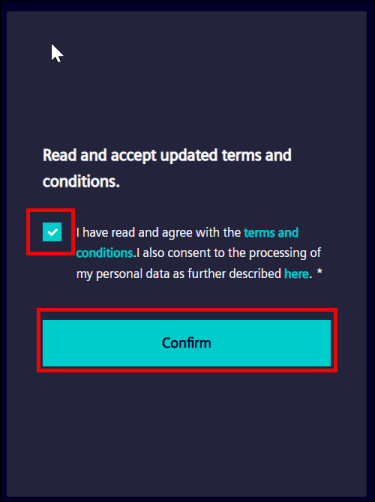
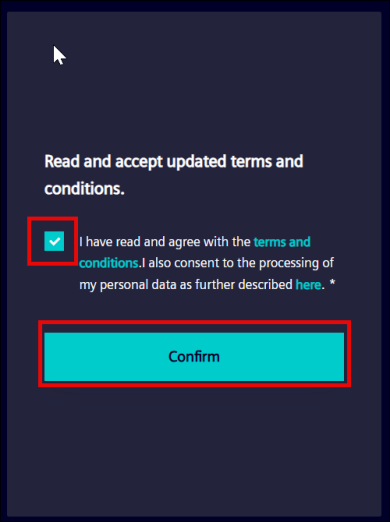
In the next page, review and accept the Terms and Conditions, then click Confirm.
-
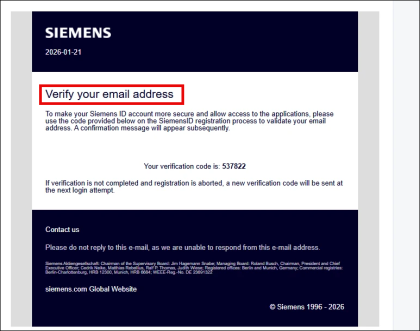
A verification code will be emailed to you.
-
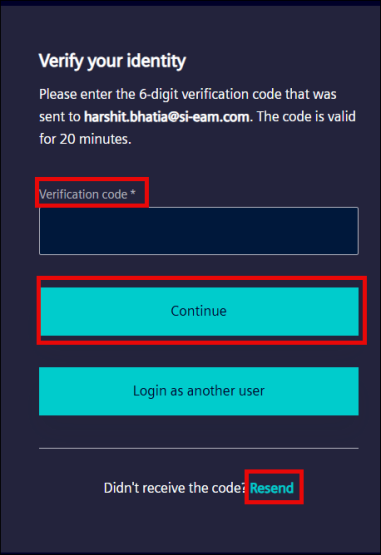
Enter the code and click Continue to complete sign-in. You can use the Resend button if email is not received.
-
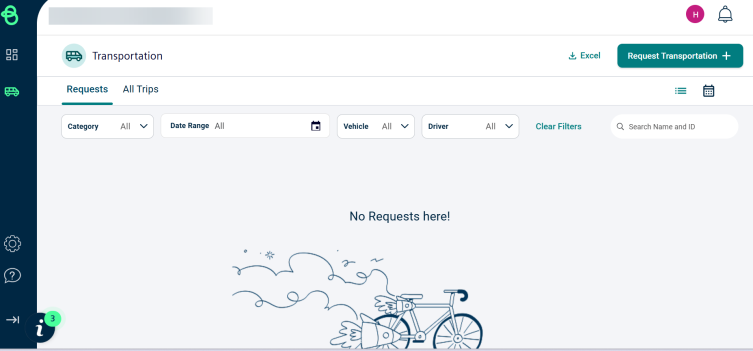
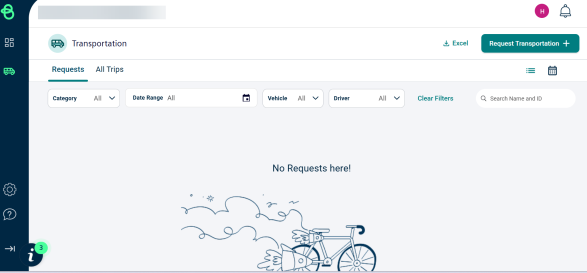
Upon successful login, Transportation Manager home page will appear on the screen.
Forgot Password?
If you have forgotten your password, you can recover it using the Forgot Password link.
-
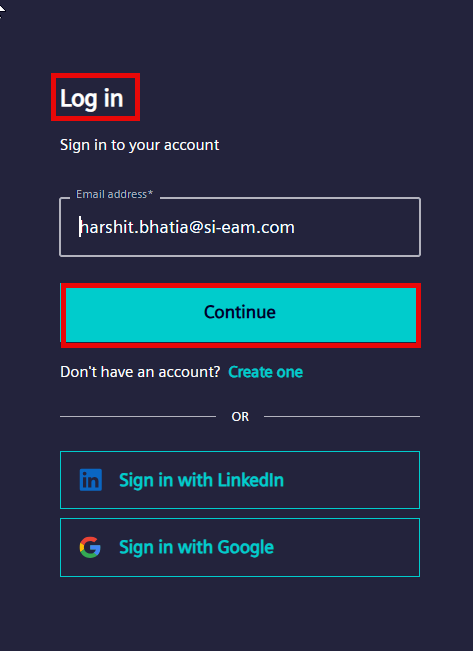
Enter the registered email address on the Log in page and hit Continue.
-
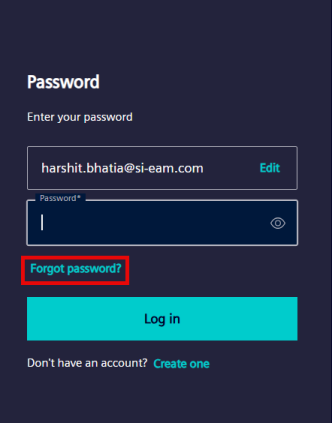
On the next screen, click Forgot password?
-
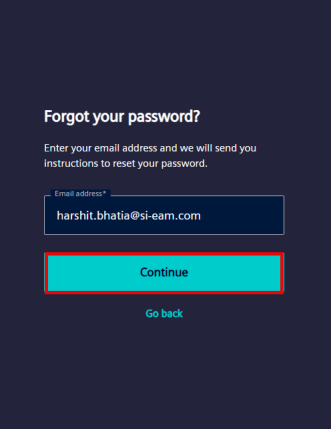
Enter your email address in the next screen to get the password reset screen and click Continue.
-
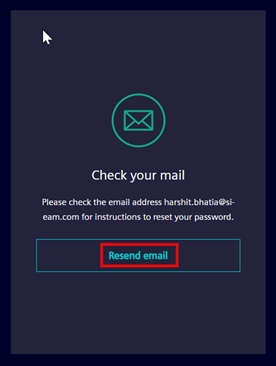
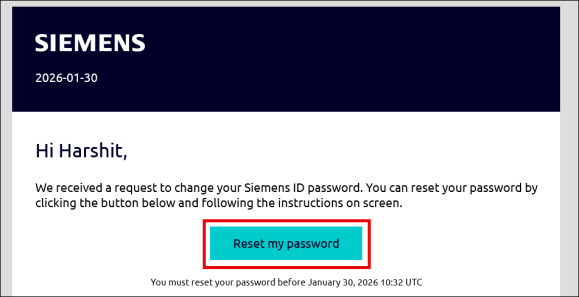
You will get an email with a link and instructions to reset the password. If you do not receive the password reset link, click Resend Email and check your inbox.
-
Click the Reset my password link from the email.
-
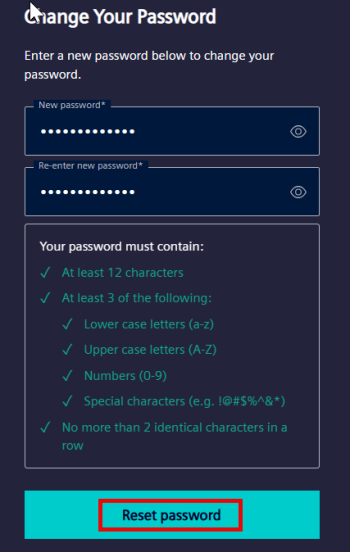
Enter your new password in the given fields and click Reset password.
-
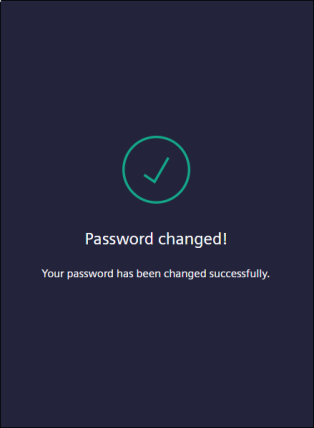
Once the password is changed successfully, you can login to the tool using the new password.
Social Sign On
Users can also directly sign in through Google and LinkedIn if the same email address is used between the Transportation Manager and LinkedIn or Google.
Sign in With Google
-
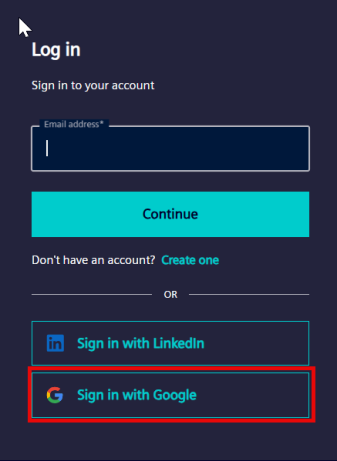
Click on Sign in with Google button.
-
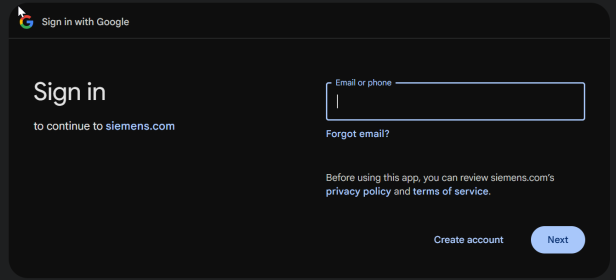
It will take you to the Google Sign-In page.
-
Enter your login credentials and click Continue.
-
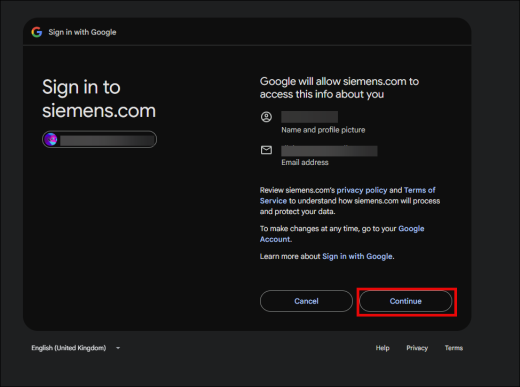
It will then ask you for permission to access your information, click Continue.
-
Then update your account information as you would do in normal login.
-
Accept the Terms and Conditions and you will land on the Transportation Manager home page.
NOTE It only works if you are logged in on Gmail with the same id in the same session.
Sign in with LinkedIn
-
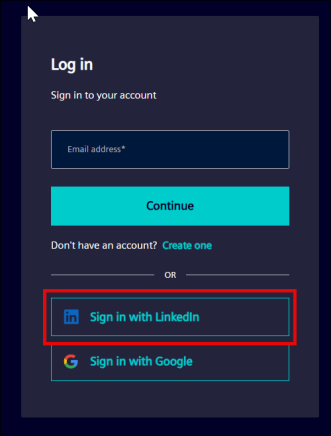
Click on Sign in with LinkedIn button.
-
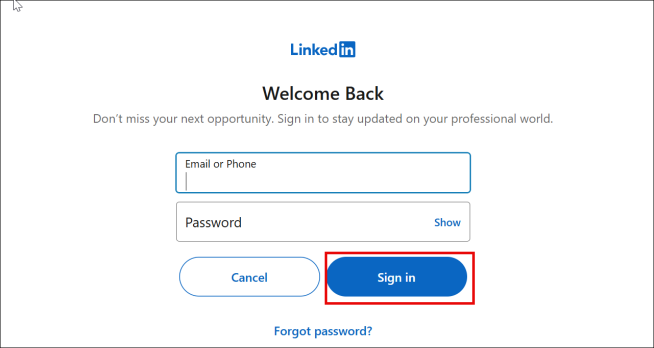
It will land you to LinkedIn login page. Enter your LinkedIn credentials and click Sign in.
-
Then update your account information as you would do in normal login.
-
Accept the Terms and Conditions and you will land on the Transportation Manager home page.
For the other details of Dashboard like Filters, click here.
Manage My Account
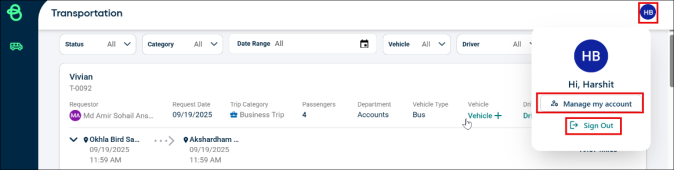
Under the User Profile option on the top right corner of the screen, you will find Manage my account and Sign Out option.
-
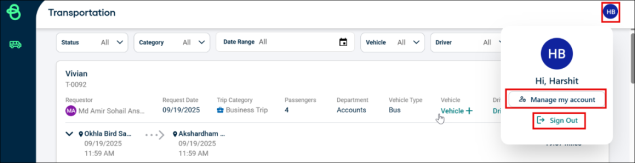
Click the Manage my account option.
-
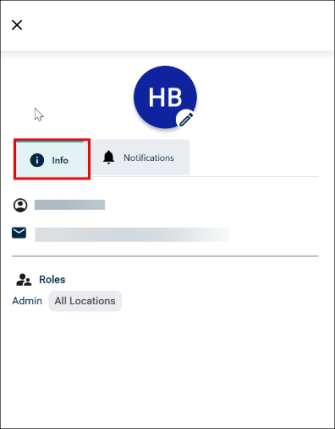
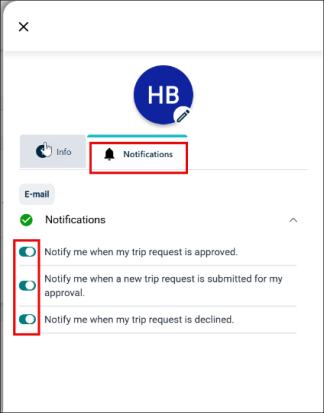
You can change your Profile picture and check the details under Info and Notification tab.
-
Info tab has your name, email address and Role information.
-
Notification tab has toggle switch for all email notifications, including:
-
Notification for trip request approval.
-
Notify me for a new trip request submitted for approval.
-
Notify me for trip request decline.
-
